

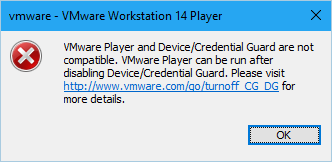
I use Windows’ Hyper-V to run virtual machines for long time. Recently I need to run a VMware virtual machine to test something. I installed VMware Player, which is free for non-commercial usage. However, the virtual machine cannot started, with an error:
VMware Player and Device/Credential Guard are not compatible. VMware Player can be run after disabling Device/Credential Guard. Please visit http://www.wmware.com/go/turnoff_CG_DG for more details.
The link will redirect you to a document with many steps.
- Disable the group policy setting that was used to enable Credential Guard.
- On the host operating system, click Start, Run, type
gpedit.msc, and click Ok. The Local group Policy Editor opens. - Go to
Local Computer Policy > Computer Configuration > Administrative Templates > System > Device Guard > Turn on Virtualization Based Security. - Select Disabled.
- On the host operating system, click Start, Run, type
- Go to
Control Panel > Uninstall a Program > Turn Windows features on or offto turn off Hyper-V. - Select Do not restart.
- Delete the related EFI variables by launching a command prompt on the host machine using an Administrator account and run these commands:
mountvol X: /s copy %WINDIR%\System32\SecConfig.efi X:\EFI\Microsoft\Boot\SecConfig.efi /Y bcdedit /create {0cb3b571-2f2e-4343-a879-d86a476d7215} /d "DebugTool" /application osloader bcdedit /set {0cb3b571-2f2e-4343-a879-d86a476d7215} path "\EFI\Microsoft\Boot\SecConfig.efi" bcdedit /set {bootmgr} bootsequence {0cb3b571-2f2e-4343-a879-d86a476d7215} bcdedit /set {0cb3b571-2f2e-4343-a879-d86a476d7215} loadoptions DISABLE-LSA-ISO,DISABLE-VBS bcdedit /set {0cb3b571-2f2e-4343-a879-d86a476d7215} device partition=X: mountvol X: /dNote: Ensure X is an unused drive, else change to another drive. - Restart the host.
- Accept the prompt on the boot screen to disable Device Guard or Credential Guard.
Actually, this is a conflict that can be simply resolved by temporarily disabling Hyper-V hypervisor:
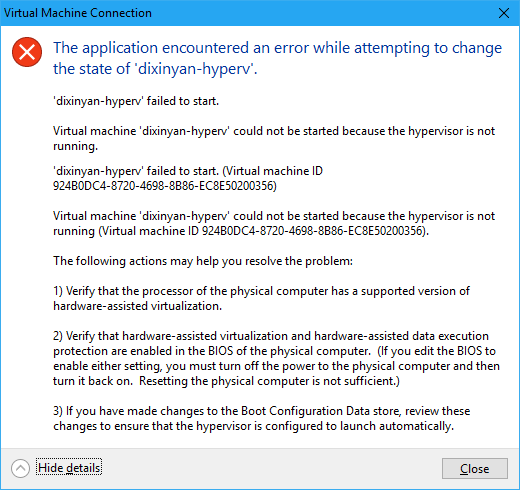
bcdedit /set hypervisorlaunchtype offRestart is required. Apparently, the side effect is that Hyper-V virtual machines cannot be started after this:
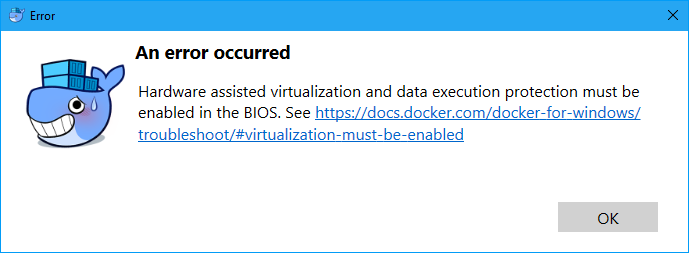
And so is Docker:
To get Hyper-V back, just turn its hypervisor back on:
bcdedit /set hypervisorlaunchtype auto